Computer Setup


Ages 6+
Objective:
Peace-of-mind tech setup guide for parents before leaning AI
Setting up tech for a child is more than just turning on a device; it’s about creating a safe, distraction-free environment that encourages active learning.
1. Creating a "Learning-First" Environment
Device setup
A device meant for education shouldn't feel like a toy box full of distractions.
- App Organization: Group "Learning" apps on the first home screen. Move games or high-distraction apps into folders on the second or third screen.
- Guided Access (Apple devices): With Guided Access, you can temporarily restrict your device to a single app, preventing the child from switching to a game when they should be practicing coding or reading.
Ergonomics & Workspace
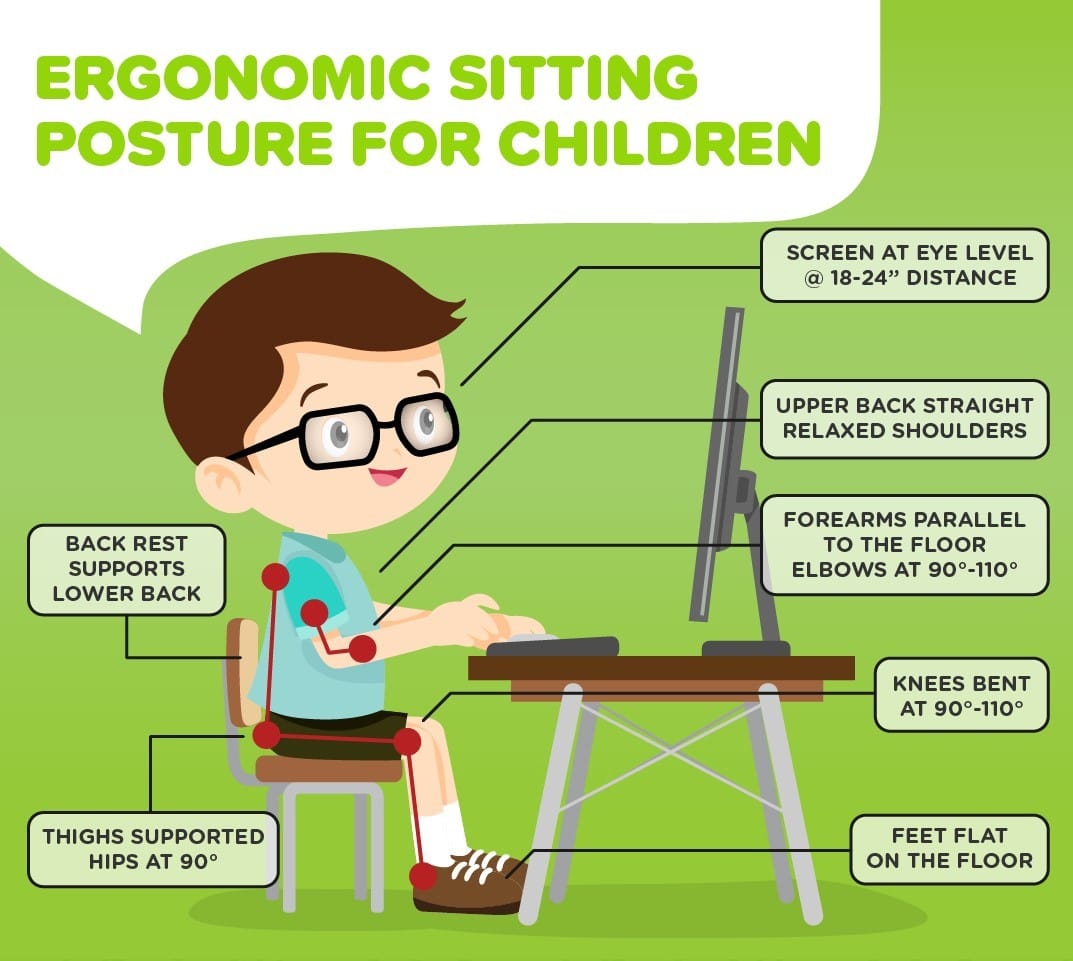
How a child sits affects how long they can effectively learn.
- Dedicated Workspace: Use a desk and supportive chair in a common area (like the lounge or kitchen) rather than a bedroom, which allows for easier monitoring.
- External Peripheral: If using a laptop, a small external mouse is often easier for little hands than a trackpad.
- Height Adjustment: The top of the screen should be at eye level. Use a laptop stand or even a stack of books to prevent "tech neck." For younger children, provide standing options or soft carpeted areas for varied postures.
- Protective Cases: Always use a rugged, it's good to use soft case for tablets.
- Distraction-Free: Ensure the area is quiet with a strong Wi-Fi signal. Use quality headphones to help them focus and block out household noise.
Parents note:
Let them add stickers or pick a background so they feel "ownership" and are more likely to treat the device with care.
2. Email Account Creation
For iPads (Apple ID / @icloud.com)
Go to Settings > [Your Name] > Family Sharing > Add Member > Create Child Account.
Apple will let you create a brand new @icloud.com email for them for free during this process. You don’t need a second phone number or a credit card (you verify with your own ID or device passcode). All "Ask to Buy" requests and Screen Time reports go straight to your iPhone.
For Google/Android (Gmail / @gmail.com)
Download the Family Link app on your phone. Tap the "+" icon to add a child.
It will guide you through creating a @gmail.com address. This is essential if they use YouTube Kids or Google Classroom. You can remotely reset their password, see which apps they are using, and set a "bedtime" for the device.
For Windows (Outlook / @outlook.com)
Visit family.microsoft.com and sign in with your account. Click "Add a family member" and select "Create an account for a child" to get high-level parental controls on a Windows PC (like website filtering and screen time limits).
3. Digital Safety & Parental Controls
Security is the most important foundation for any child’s device.
- Child-Specific Accounts: Create dedicated accounts using Apple Family Sharing or Microsoft Family. This allows you to manage everything from a parent device. Alternatively, on computers, create a standard non-admin user account for the child. This prevents them from accidentally deleting system files or installing unvetted software.
- Parental control: Parental controls are primarily designed to act as a digital safety net, allowing you to guide your child's online experience rather than just blocking it entirely.
- Screen Time Limits: Set daily limits or "down-time" schedules to ensure a healthy balance between tech and other activities.
Parents note:
Using a parent account might feel like the path of least resistance today, but it leads to a phenomenon called "Digital Identity Bleed."
Privacy & Interruption: Your text messages, emails, and calendar reminders will pop up on the child's iPad. They could accidentally delete your work emails or reply to your friends.
The "History" Mess: YouTube and search engine algorithms will get confused. You’ll start getting "Baby Shark" recommendations in your feed, and they will get your professional AI research suggestions, which might be too complex or distracting for them.
Safety Gaps: Parental controls (like blocking adult sites or setting time limits) are difficult to apply to a parent account without also blocking yourself. You’ll find yourself constantly toggling settings on and off.
What's Next?
Let's explore the AI tools/software that are using for AI Polymath:
 Miles
Miles